
Getting Cleaner Transcripts: Use the Names and Terms Field
Published October 20, 2026
Names, acronyms, and specialized terms are often where a transcript goes wrong. Here's how a short list typed in before you start can save you editing time later.
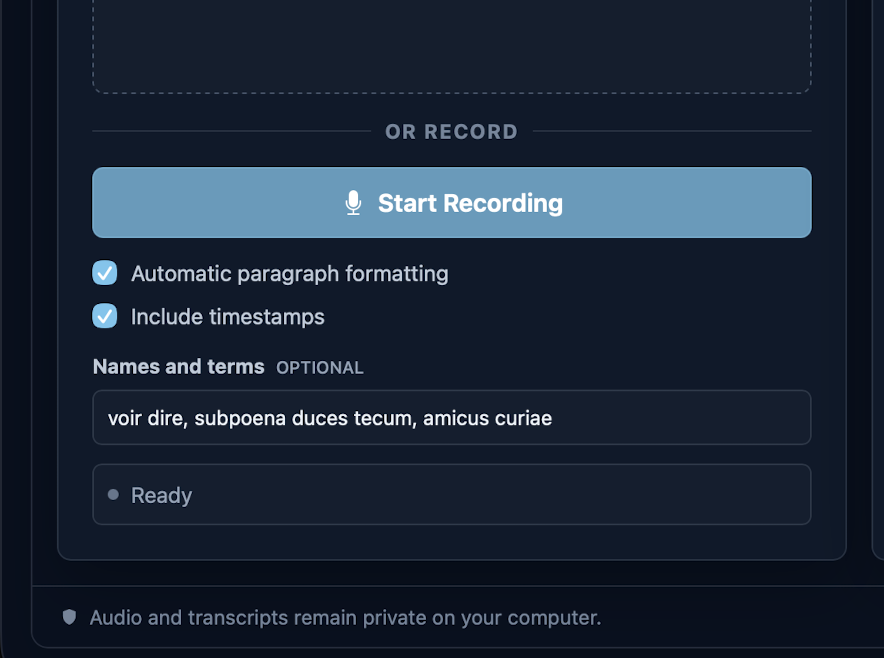
Most transcripts are mostly right. The trouble usually shows up in the details: a colleague's last name, a product code, a medical or legal term, or an acronym your team uses every day. Those are also the words you most need to get right.
Transcribe2Text has an optional names, acronyms, and terms field for this. Here's how to use it well.
What to put in the field
Before you start transcribing, think about the words a general-purpose listener might stumble over:
- People's names, especially unusual spellings (Kaitlyn vs. Caitlin, Nguyen, Siobhan)
- Company, product, and place names
- Acronyms and abbreviations your group says out loud
- Field-specific vocabulary: legal, technical, academic, or industry terms
Write them exactly the way you want them to appear in the transcript. The field is there to help with recognition, so spelling them correctly matters.
Keep it focused
A short, relevant list works better than a long dictionary. Pick the terms that actually come up in this recording. If you transcribe the same kind of material often, say a weekly team meeting or a series of interviews on one subject, keep a running list in a text file and paste in the relevant part each time.
Pair it with the other options
You'll set a couple of other options at the same point:
- Automatic paragraphs break the text into readable blocks, so you're not facing one long wall of words.
- Optional timestamps are worth turning on if you'll need to find your way back to specific moments later.
Still review the result
The terms field improves your odds, but it isn't a guarantee. Plan on a quick review pass. The built-in editor makes this easy: play the audio, watch the text highlight as it goes, and fix anything that's off right in the timestamped segments. Click a timestamp to replay a section you aren't sure about.
A quick routine
- Open your WAV, MP3, or M4A file (or record from your mic).
- Type in the names and terms that matter for this recording.
- Choose paragraphs and timestamps.
- Transcribe, then do a quick listen-and-fix pass in the editor.
A minute of setup up front usually means a cleaner first draft, and less time hunting down misspelled names afterward.
Want to try it on your own recordings? Download Transcribe2Text for a free 7-day trial (no credit card), or see pricing: $20 once, with all 1.x updates included.